Can’t hear your meeting? Let’s fix it.
Heyalo follows your call through your browser’s screen share. When it goes quiet, it’s almost always one of a handful of known causes, and most take under a minute to sort out. Here’s how to find yours.
Start with the 60-second check
Share again, with audio
End the session and start it again. In the share window, choose your meeting’s tab or window and make sure Share tab audio (or Also share system audio) is ticked before you confirm. This one toggle is the single most common fix.
Share the right thing
Share the tab or window your meeting is actually playing in. If you share something else, Heyalo sees a screen but hears a different room.
Confirm you can hear it too
If your own speakers or headphones are silent, Heyalo will be too. Play any sound to check audio is reaching your computer first.
Your browser matters more than anything
Capturing a meeting’s audio is only possible in Chromium browsers on a computer. Chrome, Edge, and Brave all work. Safari and Firefox can share your screen but send no sound, so Heyalo hears nothing no matter what else you change.
 ChromeWorks
 EdgeWorks
 BraveLower Shields for this site if the AI stays offlineWorks
 OperaWorks
 SafariCan't capture meeting audioNot supported
 FirefoxCan't capture meeting audioNot supported
On a phone or tablet, screen sharing can’t include audio at all, so use a laptop or desktop.
No sound is getting through
1. Tick the audio box (this is the one everyone misses)
When the share window opens, there’s an audio switch at the bottom. It’s off by default, and without it Heyalo gets a perfectly silent feed. Turn it on before you click Share.
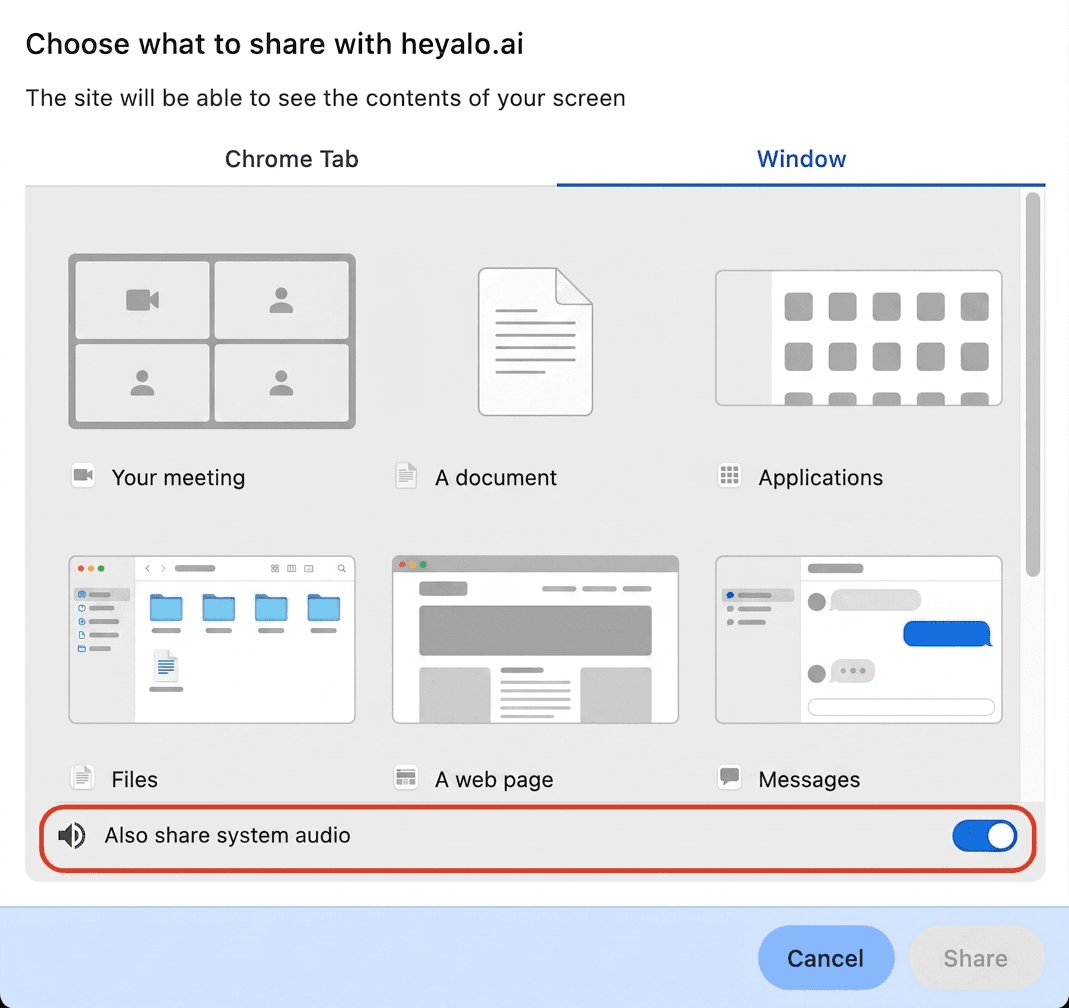
Which toggle you'll see depends on what you share
On the Chrome Tab view it reads Share tab audio. On the Window or Entire Screen view it reads Also share system audio. Either one works, just make sure it’s on.
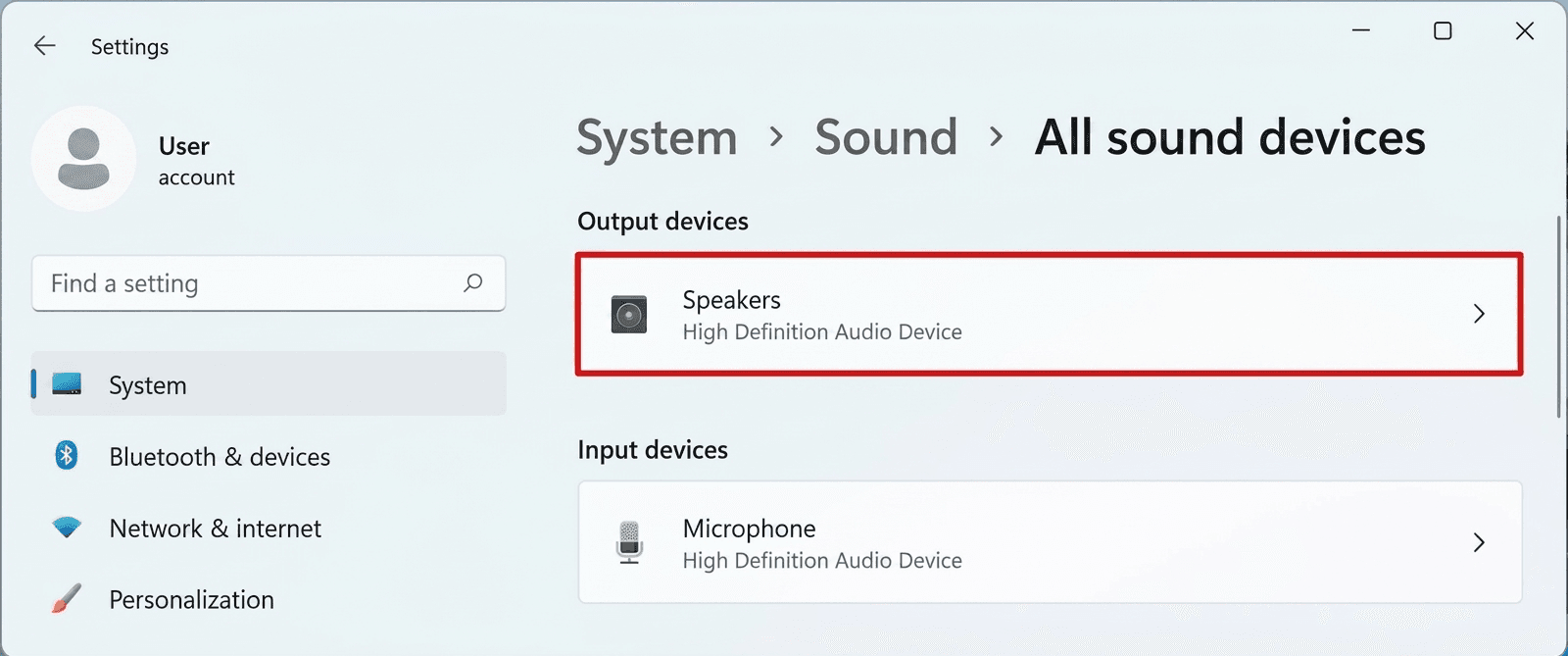
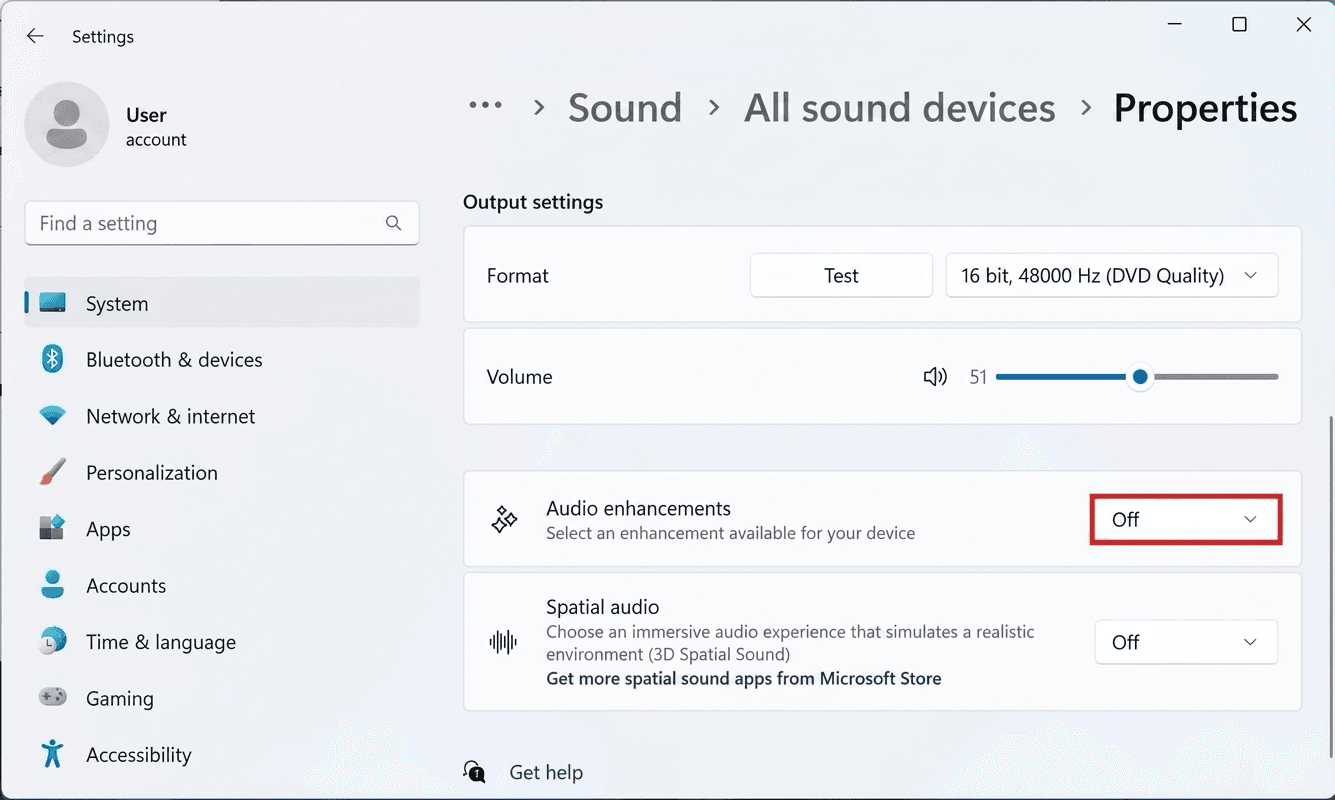
2. Windows: turn off audio enhancements
Windows “audio enhancements” can quietly stop apps from reading your speaker output. Switching them off resolves a surprising number of silent sessions.
Path: Settings > System > Sound > All sound devices > your speakers > Audio enhancements > Off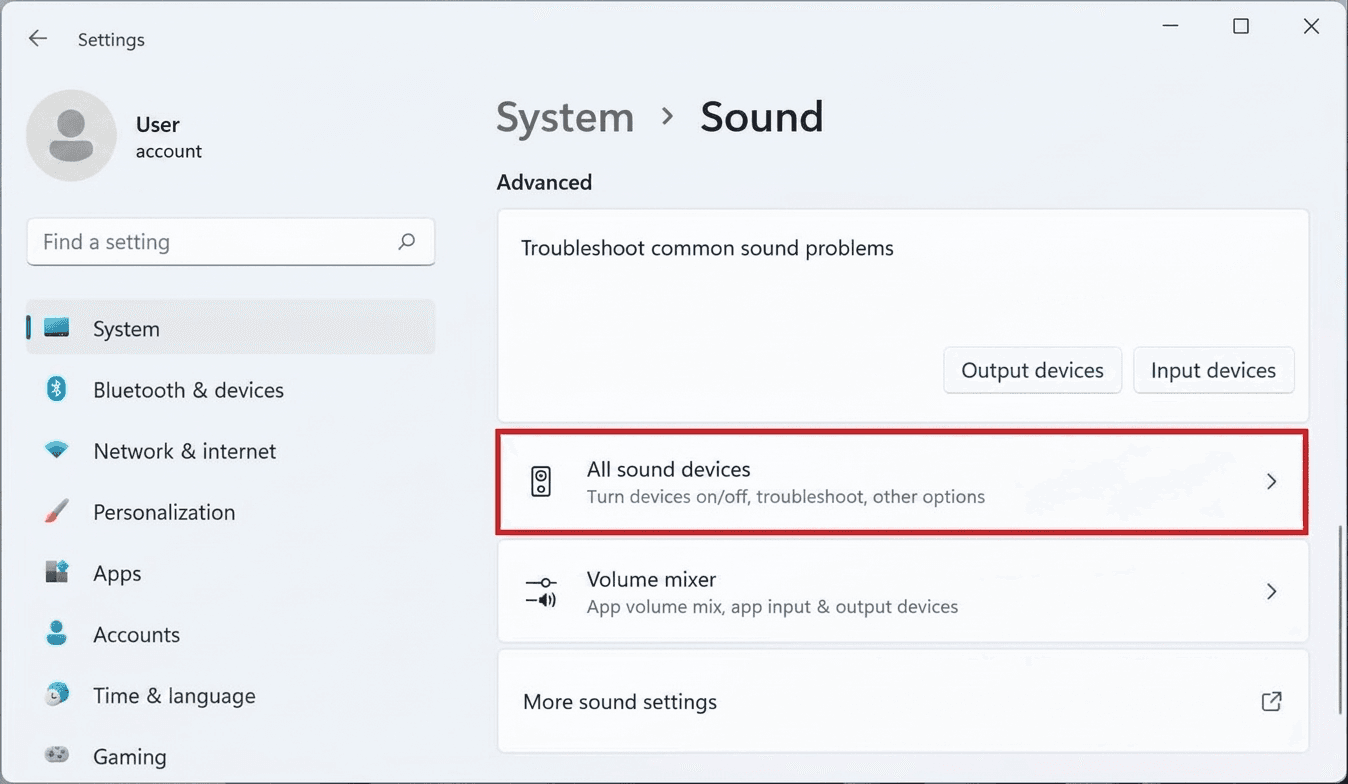
3. Quit audio-driver apps
Tools that sit on top of your sound card can hold the audio device so the browser can’t read it. If you run any of these, quit them from the system tray and share again:
- NVIDIA Broadcast
- Logitech G HUB
- Razer Synapse
- Sonic Studio / Nahimic
4. The permanent fix: release exclusive control
If audio keeps dropping out, stop other apps from locking the device:
Path: Sound settings > your speakers > Properties > Advanced > untick 'Allow applications to take exclusive control of this device'The share won’t start, or it keeps dropping
- Reload the meeting tab, then start the share again. A tab that reloaded mid-share drops the connection.
- Pick the tab or window, not “Entire screen”. It’s the most reliable choice and keeps audio attached.
- If the picker never appears, the browser may be blocking screen capture for the site. On Mac, also check System Settings › Privacy & Security › Screen Recording and enable your browser there, then restart it.
Heyalo says the AI is offline
That badge means Heyalo can’t reach its live service, usually something sitting between you and the network.
- Pause your ad blocker or privacy extension for heyalo.ai (uBlock Origin, AdGuard, Ghostery, Privacy Badger).
- Brave: lower Shields for this site.
- Try a private / incognito window with extensions disabled. If it works there, an extension was the cause.
- Check a VPN or work firewallisn’t blocking the connection, then press Retry in the session bar.
Still stuck? It’s not you.

Some setups are genuinely hard to pin down: a specific speaker, a driver, an extension we haven’t seen yet. If you’ve worked through the steps above and it’s still quiet, it often still works well enough to keep going, so don’t end your call on our account.
And please tell us: email lounge@alomana.com with your browser and operating system and we’ll dig in with you.